KorePad
A pocket sampler
with a gamepad layout
Eight pads trigger slices of a sample. A D-pad, four face buttons and two shoulder buttons sit where two thumbs land in landscape. A pixel LCD shows the waveform, tempo, current sample and every parameter as you play.
Under the hood KorePad runs the open-source pikocore firmware by Zack Scholl, compiled to WebAssembly. The audio engine, the button combos and the modes are the real firmware, not an imitation.
Play is free. The optional, one-time KorePad Pro unlock opens the whole Studio. No accounts, no ads, no tracking: your samples never leave your device.
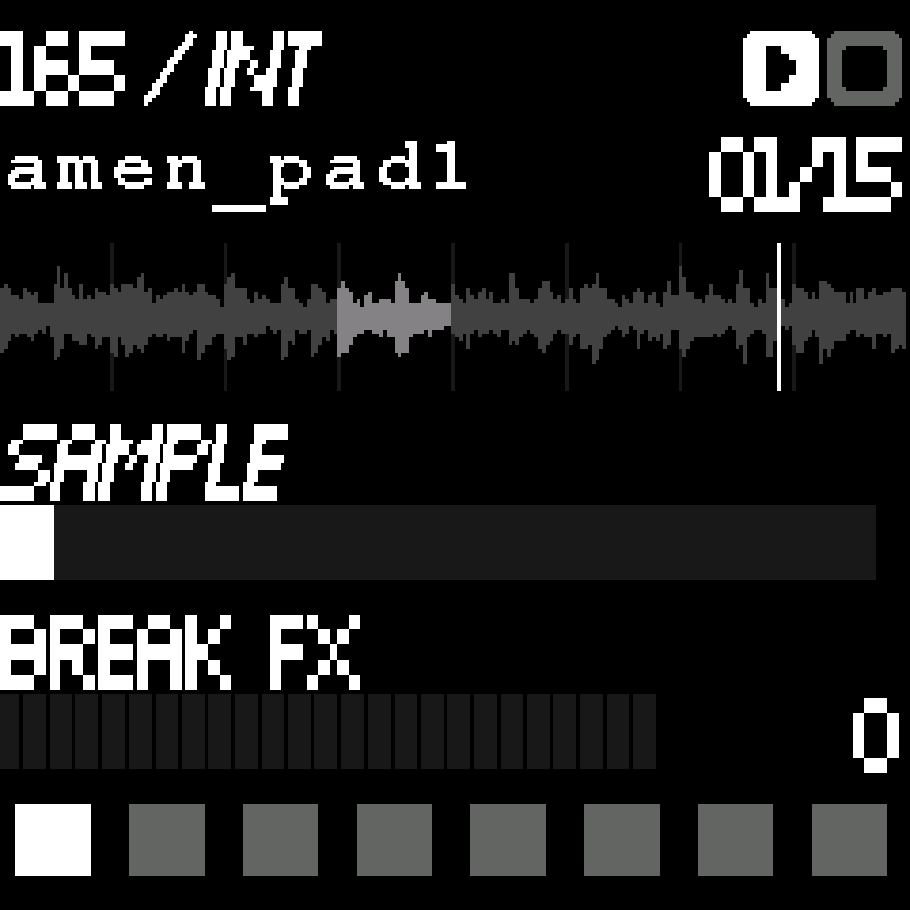
The Play screen
Tap Play on the start screen. The boot splash shows the version (VER. 1.0.N), then the demo bank loads, or your own bank if you built one in the Studio.
The LCD is the firmware's own display and everything on it is live and touchable:
- Header: tempo in BPM, the loaded sample and the beat counter.
- Play / stop icon, top-right: tap it to mute or resume instantly. Same as a Start tap.
- Waveform of the current sample with the playhead.
- Function A and Function B bars: one per parameter of the current mode. Touch a bar and slide along it to set the value. Same as L / R.
- The 8 mode squares along the bottom: the mode selector. Tap one to jump straight to that mode. Same as holding Select and pressing a pad.
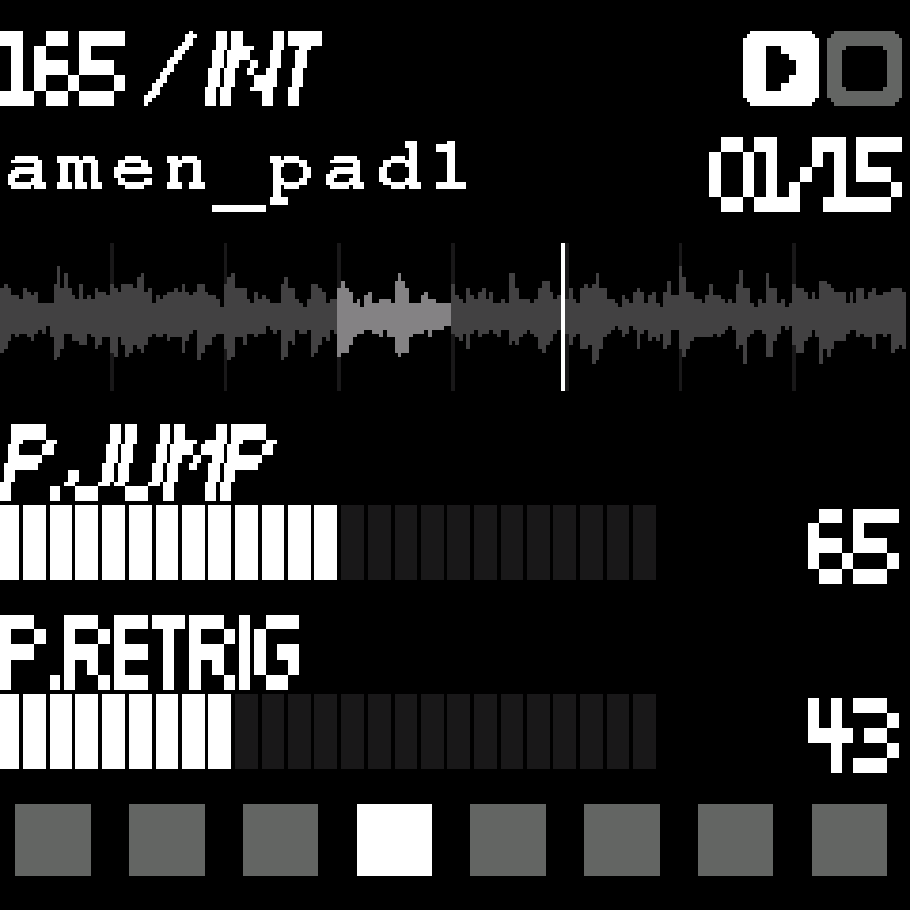
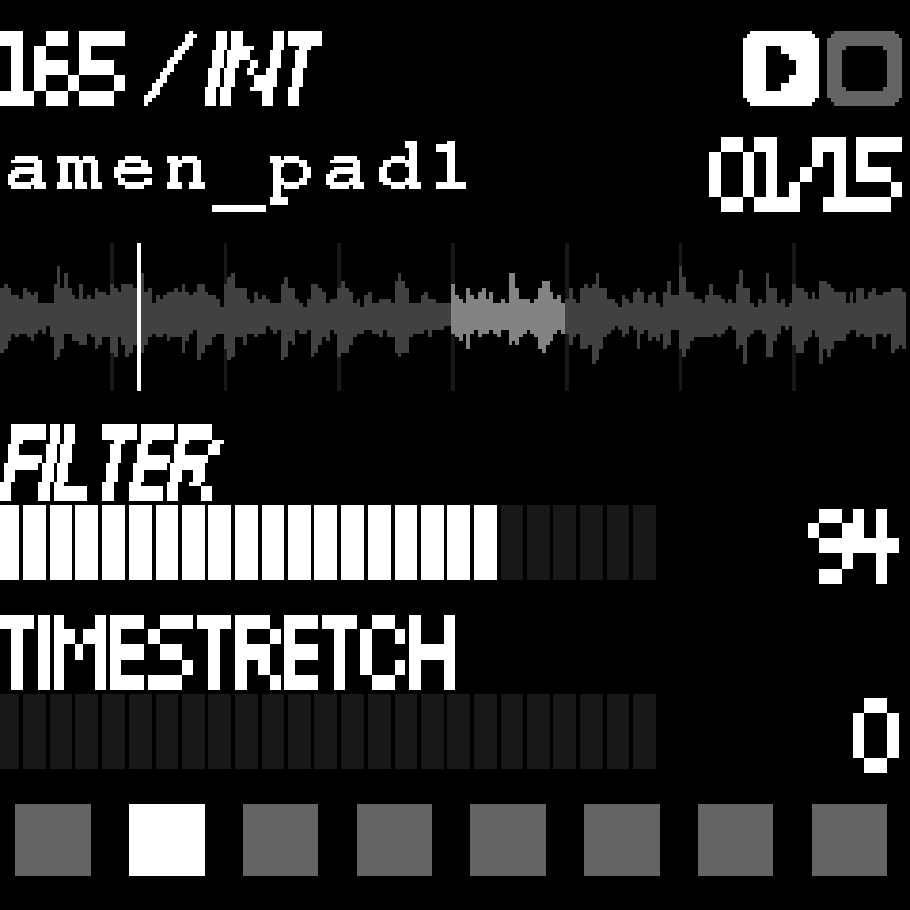
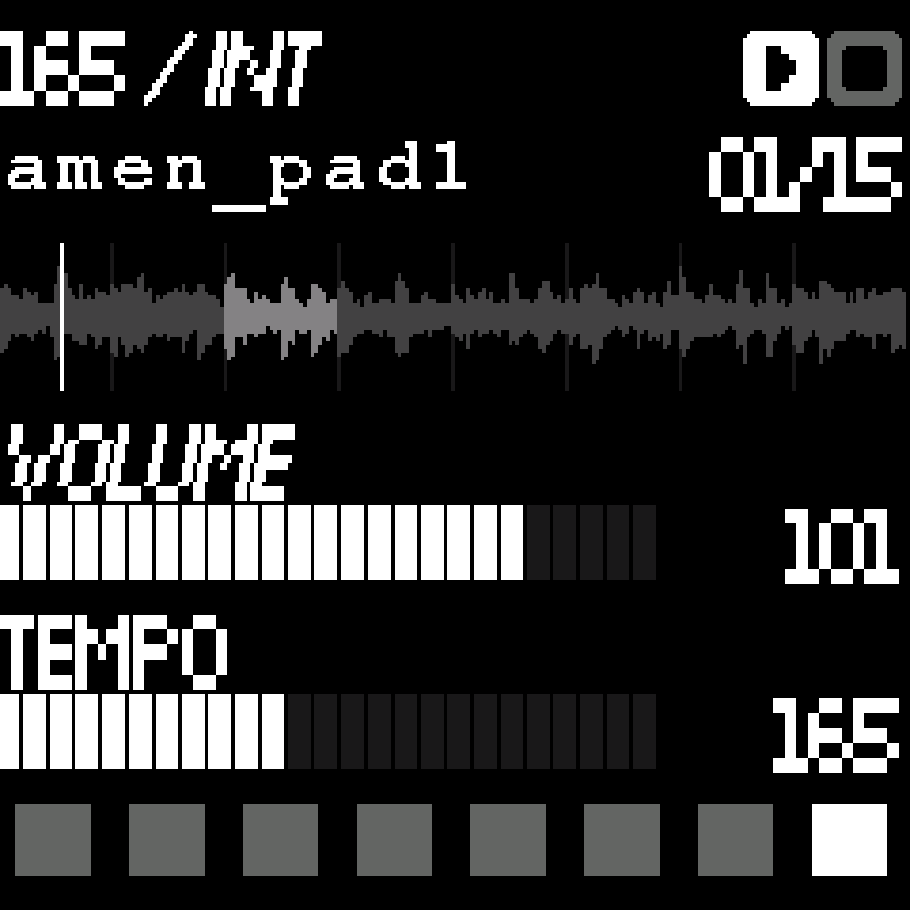
Around the screen: the D-pad and the four face buttons are the eight pads; L and R sit above them; Select and Start below. The header above the LCD names the current mode and its two Functions, with the one you are editing inverted. Menu (top-left) opens the Studio without stopping Play. ? (top-right) replays the guided tour.
Controls
Touch, keyboard and USB gamepad drive the same twelve buttons. Face buttons map by position, not by letter: the top face button of your controller or key cluster is KorePad's top face button.
| KorePad button | Role | Keyboard | USB gamepad (standard layout) |
|---|---|---|---|
| ▲ ▼ ◀ ▶ | Pads 0 – 3 | Arrow keys | D-pad |
| X top | Pad 5 | W | Top face button (Y on Xbox) |
| A right | Pad 7 | D | Right face button (B on Xbox) |
| B bottom | Pad 6 | S | Bottom face button (A on Xbox) |
| Y left | Pad 4 | A | Left face button (X on Xbox) |
| L R | Function A down / up | Q E | LB / RB |
| Select | Next mode | Backspace | Back / View |
| Start | Mute / resume · hold for Function B | Enter | Start / Menu |
Everything is on screen. Keyboard and gamepad matter on a phone or tablet with a controller attached.
The 8 pads
This is the original pikocore engine, unchanged.
- One pad jumps to that pad's slice of the current sample. The sample is cut into beats, and the eight pads are eight fixed positions in the loop: ▲ is the first, A the eighth.
- Two pads at once start a retrigger (stutter). The second pad pressed picks how fine the subdivision is: ▲ gives the slowest, longest repeats; A the fastest, most granular stutter. Within that range the exact length, repeat count, pitch and filter are randomised a little on each trigger.
- Hold Start while starting a two-pad combo to fix the subdivision to an exact value instead of randomising it. Any press order works.
| Four-pad combo | Effect |
|---|---|
| ▼+◀+X+B | Clock lock: the playhead stays synced to the beat counter instead of moving freely. |
| ▼+▶+B+A | FX reset: filter, distortion and all four probabilities back to zero. |
| ▲+▶+Y+A | Mute / resume everything, the original pikocore way. A Start tap does the same. |
Select, Start, L and R
These four buttons replace pikocore's three knobs. Select and Start each have a tap action and a hold action, told apart by whether another button was used while they were held.
| Button | Tap | Hold |
|---|---|---|
| Select | Next mode (0 → 1 → … → 7 → 0) | Hold and press a pad to jump to that mode: ▲ 0 · ▼ 1 · ◀ 2 · ▶ 3 · Y 4 · X 5 · B 6 · A 7 |
| Start | Mute / resume | Hold and press L / R to edit Function B instead of A. Hold while starting a retrigger to fix its subdivision. |
| L R | Step the active Function down / up | Keeps stepping while held |
Two parameters step differently so they are usable with buttons. Sample select (mode 0, A) moves exactly one sample per press and stops at the ends. Tempo (mode 7, B) moves 1 BPM per press, then 5 BPM per step after holding one second and 20 BPM after three. While Select is held, the pad used to jump does not trigger a sound.
The 8 modes
The modes and what Function A / B do in each are shared firmware, identical on the original hardware and in KorePad. Only how you set them differs. The squares are the ones drawn at the bottom of the LCD.
Mode 0
- A
- Sample: selects the active sample from the bank.
- B
- Break FX: a macro that ramps distortion and all four probabilities together on one bar. Starts at 0.
Mode 1
- A
- Filter: low-pass cutoff.
- B
- Stretch: time-stretch amount.
Mode 2
- A
- Noise gate: gate threshold.
- B
- Gate probability: chance each hit is gated / stuttered.
Mode 3
- A
- Jump probability: chance of jumping to another point in the sample.
- B
- Retrig probability: chance of retriggering the current hit.
Mode 4
- A
- Tunnel probability: chance of a tunnel-style jump / glitch.
- B
- Reverse probability: chance of playing a hit backwards.
Mode 5
- A
- Sequencer rec: arm / record the pads you press.
- B
- Sequencer on: play / stop the recorded loop.
Mode 6
- A
- Save: write the current state to flash.
- B
- Load: restore the saved state.
Mode 7
- A
- Volume.
- B
- Tempo: 20 – 360 BPM.
Save / Load (mode 6) keeps parameters across sessions; in KorePad the "flash" lives with the app's data on the device.
Studio
Open the Studio from the start screen or with Menu during Play. It builds the sample bank the firmware plays. Once you add your own samples they play instead of the demo bank; remove them all and the demo bank is back.
The buttons, left to right: Back, Add samples, Open bank, Share bank.
- Back returns to Play with the new bank loaded.
- Add samples opens the system file picker (WAV, AIFF, MP3, FLAC, OGG, M4A and other audio the device can decode). Several files at once is fine.
- Open bank loads a
.pikobankfile, the same format the firmware uses on real hardware, in place of the current list (it asks first if the list is not empty). Share bank exports yours through the Android share sheet. Both need Pro. - Each sample row has its BPM and beat count. The firmware uses them to cut the sample into slices and to stretch it to the current tempo, so set them to the real values of the loop.
- Preview plays the sample. Up / down reorder it in the bank, which is the order mode 0 steps through. Remove takes it out.
The bank is saved on the device and reloaded on the next launch. The free Studio holds up to 8 of your own samples. The bank has a size limit too, and the Studio tells you when it is over capacity.
KorePad Pro
Play is free, always. Pro is a one-time purchase through Google Play, no subscription, and it opens the whole Studio.
- Up to 128 of your own samples instead of 8.
- Share bank and Open bank:
.pikobankfiles, which also load on pikocore hardware. - Every future update.
Buy it from the Pro offer that appears when you hit a limit, from the Get KorePad Pro link under the Studio's sample counter, or from About & licenses on the start screen. On a new device, or after reinstalling, use Restore purchase with the same Google account. The app only asks Google Play whether the account owns the unlock and remembers the answer on the device, so Pro keeps working offline.
Lineage: pikocore → GamePi13 → KorePad
KorePad's controls were not designed from scratch. They were carried over, step by step, from two earlier devices. Knowing where each one comes from explains why things work the way they do.
pikocore (Infinite Digits, Zack Scholl)
The original is a small open hardware sampler: a Raspberry Pi Pico, 8 music buttons and 3 potentiometers. The left knob is the mode selector; the other two are Function A and Function B, whose meaning depends on the selected mode. There is no screen. Samples are loaded onto the flash from a computer. It also has a clock input, MIDI and a microSD option. The firmware is MIT licensed.
The GamePi13 port
The firmware was ported to a Waveshare RP2350 board with a GamePi13 gamepad HAT. That hardware has no knobs at all, so three things had to be invented:
- The LCD. A 240×240 screen shows what the knobs used to hide: tempo, the loaded sample and its waveform, the current mode and the two Function bars.
- Buttons instead of knobs. Select cycles the mode; L / R step Function A; holding Start while pressing them steps Function B instead.
- Shortcuts. A Start tap mutes / resumes everything (the original needs a four-button combo). Holding Select and pressing a pad jumps straight to that pad's mode.
The FX reset was ▲+▼+B+A on pikocore, where the eight buttons are independent switches. On a D-pad, Up and Down are opposite directions of one actuator and cannot be pressed together, so the reset became ▼+▶+B+A.
KorePad / KorePad Pro (this app)
The same firmware, compiled to WebAssembly and wrapped in a touch interface for phones. What KorePad added:
- Touch, keyboard and USB gamepad all drive the same 12 buttons.
- The screen is touchable: drag the Function bars, tap the mode squares, tap the play / stop icon.
- Studio replaces the microSD card and the USB loader: samples are added on the device and the bank is built there.
- A demo bank is built in, so Play works with no setup.
- KorePad Pro, sold through Google Play, is the only paid part and only affects the Studio.
| pikocore | GamePi13 port | KorePad | |
|---|---|---|---|
| 8 music buttons | 8 switches | D-pad + Y / X / B / A | Same, on screen, keyboard or USB gamepad |
| Mode selection | Selector knob | Select tap cycles; Select + button jumps | Same, plus tapping a mode square on the LCD |
| Function A / B | 2 knobs | L / R, Start + L / R | Same, plus dragging the bars on the LCD |
| Screen | None | 240×240 LCD | Same LCD, rendered on the phone screen |
| Mute / resume | Up+Right+Y+A | Same combo, or Start tap | Same, plus tapping the play / stop icon |
| FX reset | Up+Down+B+A | Down+Right+B+A | Down+Right+B+A |
| Sample loading | Computer → flash, or microSD | USB loader web page | Studio, on the device |
| Clock in / MIDI | Yes | Not wired | Not available |
| Save / Load (mode 6) | Flash | Flash | Simulated flash, kept on the device |
Credits and licenses
- pikocore firmware by Zack Scholl (Infinite Digits), MIT license. KorePad runs a GamePi13 remix of it; the audio engine, modes and button combos are his work.
- KorePad (the app: UI, Studio, native wrapper, branding) by Sebastián Duarte, proprietary.
- Pixel typefaces bundled with the app under the SIL Open Font License: Silkscreen, Press Start 2P, VT323, Pixelify Sans, Jersey 10, DotGothic16.